The short answer
Use 2.4 GHz for devices that are far from the router, several metres away or with walls in between, or that don’t support 5 GHz. Use 5 GHz for everything you can: you’re already in the same room or very close, and you need download speed.
This isn’t a choice between “better” and “worse”. They are two bands with opposite trade-offs, and at home it almost always makes sense to have both active under different names.
Why they behave that way
Both bands travel through the same physical space and are distinguished by their frequency. What changes isn’t only speed: how many walls they get through and how much interference they tolerate change too.
| Characteristic | 2.4 GHz | 5 GHz |
|---|---|---|
| Range | Greater | Shorter |
| Wall penetration | Better | Worse |
| Interference | Plenty (neighbours) | Less |
| Theoretical maximum speed | Lower | Far higher |
| Older IoT devices | Yes, nearly all | Varies |
The reason is physics: higher frequencies are attenuated sooner as they pass through dense materials. The 5 GHz band offers more available bandwidth, but its waves lose energy before reaching the other side of a wall.
The real problem with 2.4 GHz
The 2.4 GHz band has very few channels that don’t overlap each other. In most countries, channels 1, 6 and 11 can be used without interference. If you have all three active at once, they collide. The three non-overlapping channel rule is detailed in the WiFi signal and channel diagnostic.
And you’re not alone on the channel: in a dense residential building there can be dozens of 2.4 GHz networks transmitting at once, because everybody repeats the mistake of using channels 1, 2 and 3. That’s why 2.4 GHz tends to be slow and unstable in crowded areas even when you’re right next to the router.
The real problem with 5 GHz
The 5 GHz band has far more free space, so it’s cleaner. Its limitation is coverage: in a 90 m² flat with a brick partition, the difference shows up in the furthest bedroom and in the living room if the router is small.
You also have to tell 5 GHz apart from the WiFi 6 and WiFi 7 bands, which are not new bands: they still use 2.4 and 5 GHz, plus 6 GHz in WiFi 6E and WiFi 7. The difference is efficiency, not frequency. It’s explained in WiFi 6 or WiFi 7.
One name per band: why it matters
If the router broadcasts a single network name for both bands, that’s called band steering: the router decides which one to send each device to according to its capabilities and the signal it picks up.
It works well, but it has a common problem: an old device that only supports 2.4 GHz can get stuck on a weak 5 GHz signal, or reconnect constantly because the router keeps switching bands. If you have disconnection problems, turning off the dual name usually fixes them.
The names you see in shops (WiFi 4, 5, 6 and 7) are not marketing inventions: they are defined and certified by the Wi-Fi Alliance.
The alternative is separate names: MyNetwork for 2.4 GHz and MyNetwork_5G
for 5 GHz. It’s more manual, but it lets you force each device onto the right
band and see at a glance which one each is using.
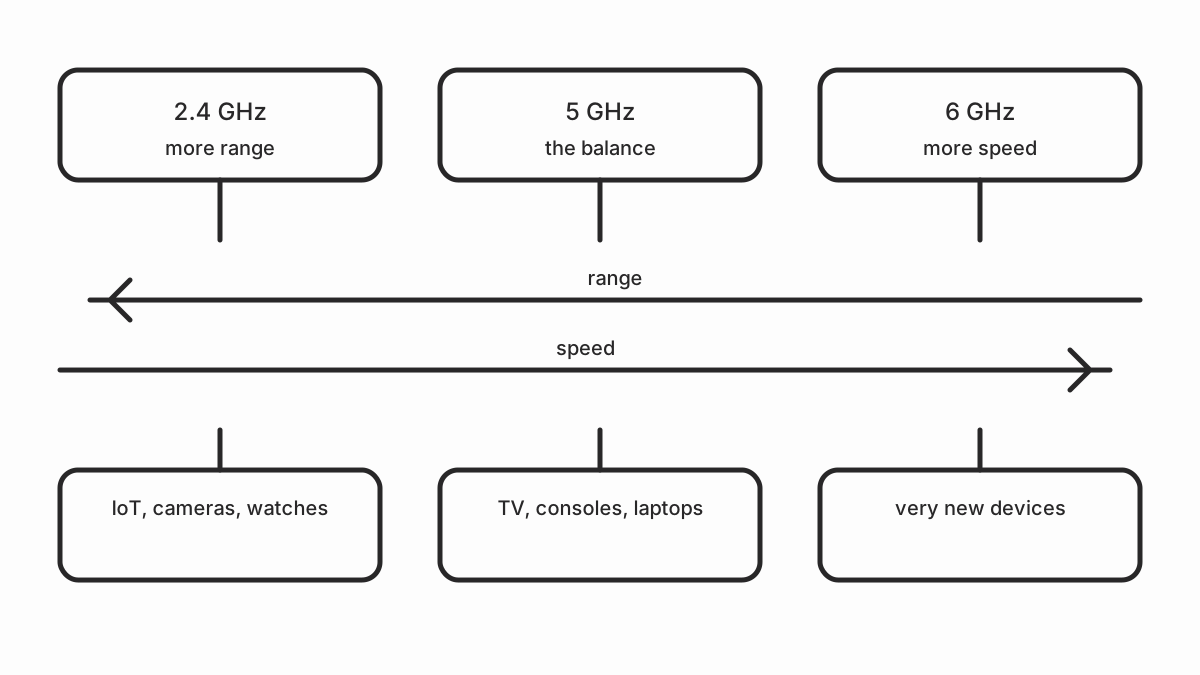
Which device goes on which band
| Device type | Recommended band | Reason |
|---|---|---|
| Recent phone or laptop | 5 GHz | Speed and less congestion |
| Desktop computer | 5 GHz or cable | Maximum stability |
| Televisions and consoles | 5 GHz | High-resolution streaming |
| Printer | 5 GHz or cable | Transfers saturate the network |
| ESP32, ESP8266, Tasmota | 2.4 GHz | Many only support 2.4 GHz |
| Memory sticks, cameras | 2.4 GHz | Reaches further |
| Smart speaker | 2.4 GHz | Coverage and stability |
If you have smart home devices, the choice isn’t free: most ESP32 and ESP8266 only work on 2.4 GHz. It’s not a router problem, it’s a hardware limitation. The details are in IoT devices that keep disconnecting.
How to set it up on your router
Almost every current router has a switch to enable each band separately:
- Log in to the router configuration.
- Look for the Wireless or WiFi section.
- Split it into two networks, one per band, with different names.
- Set 2.4 GHz to a channel between 1, 6 and 11 that doesn’t clash with your neighbours’.
- Leave 5 GHz on automatic or pick the channel with the fewest devices.
If you still get drops on 2.4 GHz after changing channels, the problem probably isn’t the channel but saturation from the neighbourhood. The real fix is to change the coverage, and we look at that in extending WiFi coverage at home.
Common mistakes
- Using the same name on both bands with older IoT devices can cause unexplained disconnections. Separate the networks if you notice drops.
- Leaving 2.4 GHz on automatic: the router may end up picking a channel that overlaps with your neighbour’s.
- Turning off 5 GHz to “improve” coverage: if the router is powerful, you make things worse for nearby devices that fall back to 2.4 GHz.
- Expecting more speed from a band change: speed comes from bandwidth and signal quality, not from the network name.
Quick checklist
- Both bands active with different names.
- 2.4 GHz fixed on channel 1, 6 or 11.
- 5 GHz on the channel with the fewest devices.
- IoT devices assigned to 2.4 GHz.
- Phones and computers on 5 GHz.
- If there are drops, turn off the dual name and try again.
Sources and next step
Before changing anything, measure the signal by following how to measure your home WiFi signal. If you’ve already set up the bands and want to know why the connection keeps dropping, read about WiFi keeps dropping.