What you actually need to measure
Measuring your WiFi signal means answering three separate questions, and it’s best not to mix them up:
- How much signal reaches a given point (measured in dBm).
- Which channel each router around you is using.
- What speed the connection really runs at in that spot.
A WiFi analyser handles the first two. The third needs a speed test. Mixing them up leads to changing the channel when the real problem was weak signal, or to measuring speed when the problem was interference.
What dBm is and how to read it
dBm measures power in milliwatts, but in practice you read it as a negative value, where less negative is better.
| dBm | Quality | Typical use |
|---|---|---|
| -30 | Excellent | One metre from the router |
| -50 | Very good | Same room |
| -60 | Acceptable | Average home, one wall |
| -67 | Usable limit | Threshold for reliable use |
| -70 | Weak | 2.4 GHz only |
| -80 | Very weak | Unstable connections |
| -90 | Unusable | The connection will drop |
The -67 dBm threshold is the most commonly cited one for streaming and video calls without drops. Below -70 dBm, an IoT device may associate with the network and then drop on its own once it starts transmitting, because the signal reaches it but not with enough quality.
It’s worth measuring 2.4 GHz and 5 GHz separately, because the values aren’t comparable between bands. The same flat can give -45 dBm on 5 GHz in the living room and -72 dBm in the corner bedroom.
Channels: the hidden cause of slowness
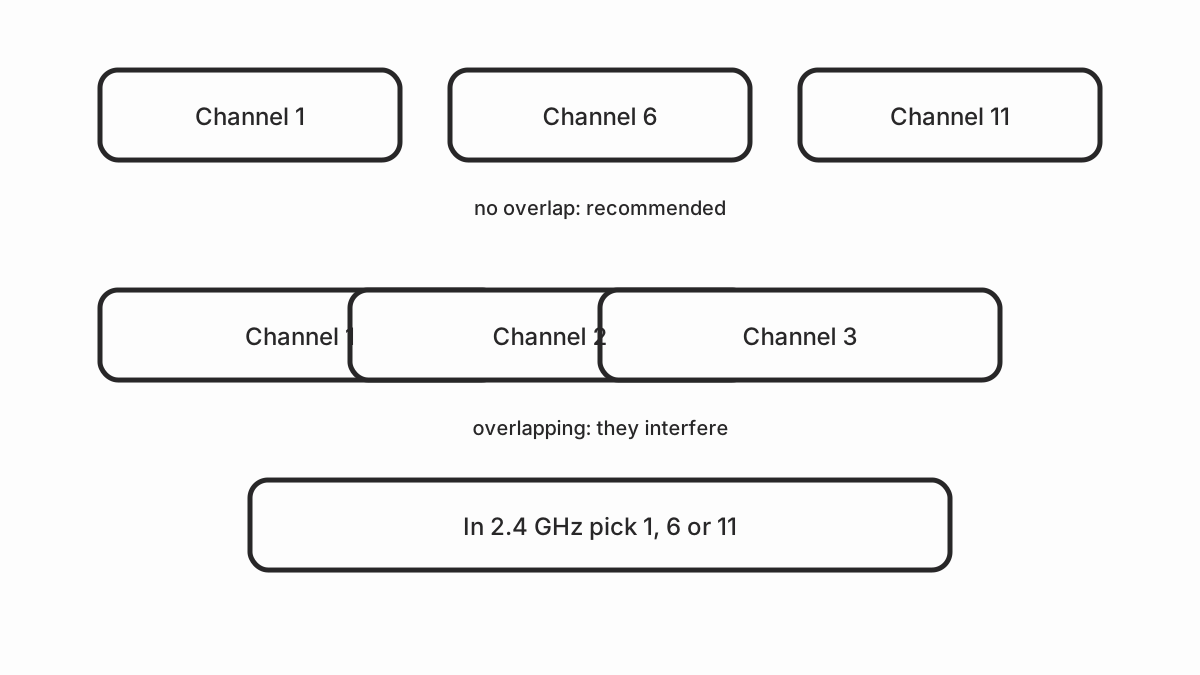
On 2.4 GHz only three channels don’t overlap each other: 1, 6 and 11. The fourteen available channels overlap one another. If your router uses channel 3 and the neighbour’s uses channel 7, both are transmitting in the same slice of spectrum and they get in each other’s way.
The non-overlapping channel rule is explained in the WiFi signal and channel diagnostic.
On 5 GHz there’s far more room: 2.4 GHz has 22 MHz of usable width and 5 GHz has channels 20, 40, 80 or 160 MHz wide. That’s why a network on 5 GHz can be congested and still be faster than one on 2.4 GHz.
To measure channels you need an analyser that can see other routers’ energy. A network scanner only tells you which networks exist, not which channel they use: the name may be hidden. You need an app that reads the channel.
What to use on each system
| System | Tool | What it gives you |
|---|---|---|
| Android | WiFi Analyzer, Analizador WiFi | Signal and channel for each network |
| Windows | netsh wlan show interfaces | Channel and signal of the current router |
| Windows | paid network analyser | Map of neighbouring channels |
| iOS/iPadOS | Airport Utility (built in) | Advanced diagnostics only |
| macOS | Option + click the WiFi icon | Signal, channel, noise and speed |
| Router | Its own diagnostics page | Client list and current channel |
On macOS, holding the Option key while clicking the WiFi icon in the menu bar opens a panel with the channel, the signal in dBm, the noise and the negotiated speed. It’s the most complete tool without installing anything.
On Windows, netsh wlan show interfaces gives the channel, the signal level and
the authentication of the router you’re connected to. To see the neighbours you
need an analysis app.
How to read what the app reports
An analyser app shows, for each network: name, signal in dBm, channel and sometimes the frequency. The data that matters:
- Your router’s signal: the one that serves you.
- Your neighbours’ channels: so you can pick yours.
- Number of networks on each channel: if there are four or five on channel 6, that channel is saturated even if your signal is good.
If your network has a good signal (-55 dBm) but there are six networks on your channel, the problem isn’t coverage but interference. The fix is to change channel, not to move the router.
Measuring real speed
The measurement that matters to the end user is the real speed in each room. A speed test measures your internet link, so it only helps if the bottleneck is on the WiFi. If you have 1 Gbps fibre and the test returns 800 Mbps, the network is fine even if the dBm is mediocre.
Do it like this:
- Connect the laptop to the router by cable and run a reference test. That’s the real maximum of your line.
- Repeat the test over WiFi in each room.
- Compare. If you get 800 Mbps by cable and 120 Mbps in the bedroom, the problem is coverage. If over WiFi in the living room you only reach 300 Mbps, the problem is interference or a limited router.
What to do based on the result
| Result | Likely cause | Solution |
|---|---|---|
| Strong signal, saturated channel | Interference | Change to channel 1, 6 or 11 |
| Weak but stable signal | Coverage | Repeater, mesh or powerline |
| Strong signal, low speed | Interference or congestion | Change channel, review clients |
| Cuts out and reconnects | Interference or channel | Change channel, disable bands |
| Speed by cable is low too | Line problem, not WiFi | Contact your ISP |
Quick checklist
- Measure with both bands separately.
- Check how many neighbours use your channel.
- Set 2.4 GHz to 1, 6 or 11.
- Run a cable test as a reference.
- Repeat the test in each room.
- Write down the results before changing anything.
Sources and next step
With the measurements in hand, the first decision is which band to use: see 2.4 GHz or 5 GHz. If the signal is good and the channel is saturated, the problem is interference and you’ll find the fix in slow WiFi at home. If the signal is weak, what you need is extending WiFi coverage.