The only protection that matters: WPA2 or WPA3
Any network without encryption is an open network: anyone within range can see the traffic. The two security measures that matter are the encryption of the traffic and a strong password.
WPA2 uses AES, which is still safe as long as the password is good. WPA3 improves the encryption and changes how the password is proven, so an attacker cannot try passwords against your network without interacting with it.
CISA recommends WPA3 Personal with AES as the most secure setting for the home in its home network security guide, and the Wi-Fi Alliance keeps the Wi-Fi security page with the state of each generation.
WPA2 or WPA3: which one to choose
| Option | Security | Older devices | Recommended |
|---|---|---|---|
| WPA2 only | Good | All | If you are stuck on pure WPA2 |
| WPA3 only | Very high | Some cannot join | If everything is modern |
| Mixed WPA2/WPA3 | Very high | All | The default choice |
| WEP or no encryption | None | Nothing | Never |
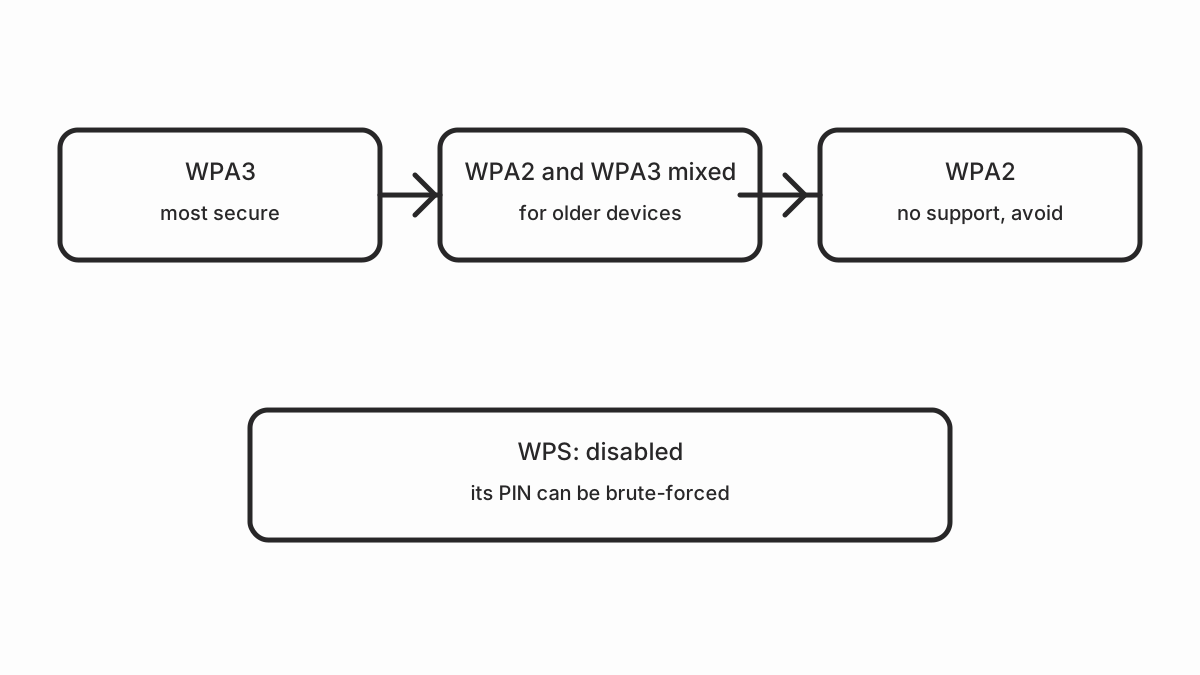
Mixed WPA2/WPA3 is the option to enable. Your network accepts WPA3 with the devices that support it and WPA2 with the older ones, without leaving anyone out.
WPS: the back door worth closing
WPS is the feature that lets you connect a device by pressing a button on the router and another one on the device, without typing a password. It is convenient, but it has a known security problem: with the PIN method, all combinations can be tried in a reasonable amount of time.
| WPS method | Risk | Recommendation |
|---|---|---|
| PIN | High | Disable |
| Push button | Low | Disable if you don’t use it |
| Disabled | None | The preferred option |
The recommendation is to disable WPS. The convenience of connecting a device once does not outweigh the risk of someone using the PIN to get into your network. On top of that, most modern operating systems have their own way to share the password without using WPS.
Passwords: long beats complicated
A long, meaningless password is more secure than a short one full of symbols. The reason is that current tools try thousands of combinations per second, but they cannot try lists of real words nearly as fast.
| Password | Approximate cracking time |
|---|---|
12345678 | Seconds |
Perro2024! | Minutes |
casa-verde-gato-42 | Centuries |
Generate the password as a four-word phrase that appears nowhere else. Store it in a password manager, not on a piece of paper next to the router.
CISA also warns that the WPS PIN can be brute-forced because the equipment confirms which of the two halves it is on: its security alert explains it, and Cisco cited it as a reason to remove WPS from its equipment.
Measures that add layers
These do not replace WPA, but they make an attack harder:
- MAC address filtering. It only lets the MACs of your devices connect. It is easy to bypass with spoofing, so it is useless on its own, but combined with WPA it makes things harder.
- Hiding the SSID. It does not show up in the network list. It is not real security, because the router still answers anyone asking for the name, but it reduces visibility.
- Guest network. Isolated from your devices. Mandatory if you have visitors or an Airbnb flat.
- Updating the firmware. An unpatched router can have known security flaws that are exploitable.
- Changing the administration password. Many routers ship with
admin/admin; changing it matters more than anything after the WiFi key.
Changing the router password
Before touching anything, write down the current password: if you lose it, you will have to do a factory reset, which leaves you with the original configuration. The process is the same on any router:
- Open the router’s administration page, normally at 192.168.1.1 or at the address your ISP indicates.
- Go to the wireless or security section.
- Change the WiFi password to a long phrase.
- Change the administration password to a different one.
- Disable WPS.
- Select mixed WPA2/WPA3, or WPA2-PSK if your equipment does not offer mixed mode.
- Save and restart the router.
When you change the WiFi password, every device disconnects and has to reconnect. Warn whoever uses the network before you start.
If you suspect you were hacked
- Change the WiFi password and the administration password.
- Update the router firmware.
- Look at the list of connected devices and remove any you do not recognise.
- Review the DHCP leases to see whether there are odd entries.
- If the router shows hidden clients or changed configuration, do a factory reset and set it up again.
A hacked router often shows symptoms such as: an SSID that is not yours, connected devices you do not recognise, or the administration page asking for credentials that are not your own.
Quick checklist
- Mixed WPA2/WPA3, or WPA2-PSK if needed.
- Long passphrase, different from the admin password.
- WPS disabled.
- Administration password changed.
- Firmware updated.
- MAC filtering and a guest network as extra layers.
- Connected device list reviewed periodically.
Sources and next step
If what worries you is opening ports towards your home from the Internet, that is a different topic: CGNAT and ports in Spain. If the problem is that the whole network keeps dropping, start with WiFi keeps disconnecting. And if you want a solid base for the rest of the network, see a separate VLAN for your smart home.
External sources
- CISA: home network security — archived document; includes the recommendation of WPA3-AES, changing the router password, using a single SSID, and disabling UPnP, remote management and WPS.
- CISA: security alert about WPS — the PIN design flaw that makes brute force easy.
- Cisco: why WPS should be retired
- Wi-Fi Alliance: Wi-Fi security